

THE ORIGIN STORY
A little more context.
On your terms.
Captain SuperSight is a customizable camera and display aid. Magnify the live view, adjust colors and contrast, outline edges, and operate the app through tactile controls and spoken feedback.
Save useful places, adjust supported displays, and shape the camera view around what works for you. Available controls vary by device, permissions, camera source, and connected hardware.
Meet your toolkitMEET YOUR TOOLKIT
Ten tools.
One wheel.
Shape the live view, keep useful places nearby, or hear more about a scene. Pick a tool below to see it in action.
Camera and display controls work independently of AI. Available controls depend on your device, camera source, permissions, and connected hardware.
A FIRST LOOK · FROM APP ONBOARDING
Feel your way
around the wheel.
Physical controls and spoken feedback let you move through the tools without having to watch the screen. Touch controls are there too.
- Move between tools
Double-press or hold a volume button. On screen, touch and drag the wheel.
- Activate or adjust
Tap a volume button to use the focused tool. Or tap it directly on screen.
- Take a shortcut
Triple-press Volume Up for Zoom mode. Triple-press Volume Down for a SuperSight description.
Zoom: Make the small
stuff bigger.
Bring a label, sign, or detail closer in the live camera view. Step through magnification levels, or switch into Zoom mode to explore the enlarged image.
Toggle Zoom mode. On a trackpad, pinch to zoom and use two fingers to move around the view.
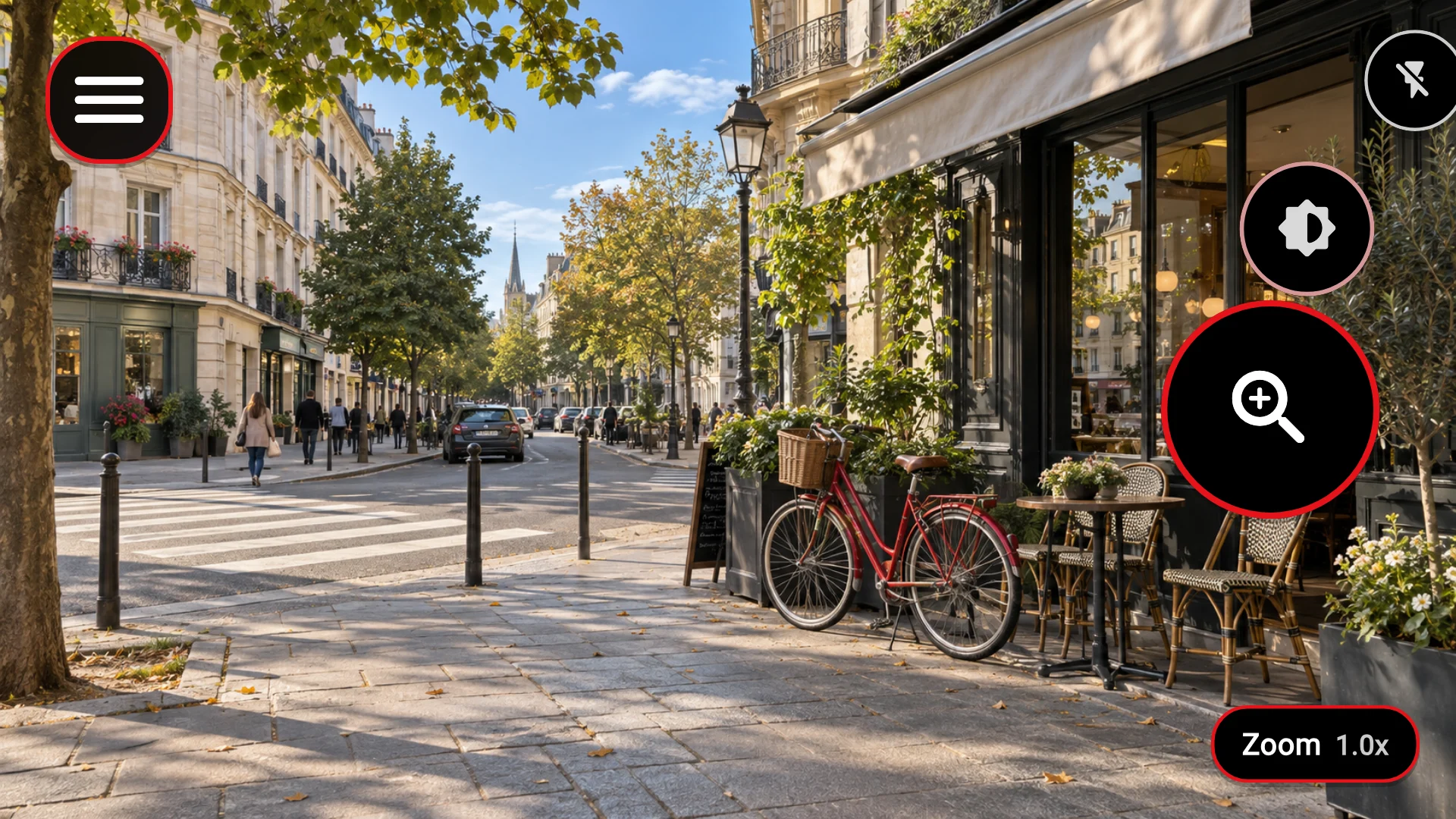
Exposure: Find your
kind of light.
Make the camera picture brighter or darker. Adjust the exposure to suit the scene and the view that feels comfortable to you.
Focus Exposure, then tap to adjust its value. Hardware exposure support depends on the camera source.
Flash: A little light.
Right on cue.
Turn the camera light on when you need to illuminate something nearby. Turn it off again with the same control.
Focus Flash and tap either volume button, or tap the tool on screen. Requires a camera with a supported light.
Locations: Keep your places
within reach.
Save useful places and keep favorites close at hand. Choose a saved destination to see its approximate direction and distance in the camera view.
Focus Locations and tap to open the places wheel. Pick a destination to display its bearing and distance.
A bearing is not a route or a safety assessment. Keep using your established mobility aids.
Edge Outlines: Give shapes
an outline.
Add a visible outline to edges in the camera image. Choose the color, line weight, opacity, and object scale that works for your view.
Focus Edge Outlines to switch them on or off. Fine-tune the appearance in settings.
Filter: Change the color.
Change the view.
Try Color Invert, High Contrast, or Yellow Duotone. Cycle through the filters to find the picture that is easiest for you to use.
Focus Filter and tap to move through the available options. Choose None to return to the original colors.
Recovery: Balance the bright
and the dark.
Adjust how the app treats highlights and shadows. Move through Mild, Balanced, Strong, and Max presets, or fine-tune the two settings separately.
Focus Recovery and tap to change the preset. The preview below uses Balanced (50%).
SuperSight: A view you
can hear.
Request a description of what the camera is looking at, read aloud. Capture a scene when you want more context, then review the description alongside the captured frame.
Describe the scene directly from the camera. A supported on-device AI model must be installed first.
AI can be wrong, incomplete, or delayed. Verify important information before acting.
Sentinel: Tell it what
to look for.
Type something you want the camera to watch for, such as “Find a red bicycle.” Sentinel checks frames at your chosen interval and announces a result when it finds a match.
Open Sentinel to enter a command or reuse one from history. Cancel monitoring whenever you like.
AI can be wrong, incomplete, or delayed. Verify important information before acting.
Sound Mute: Spoken feedback.
Your choice.
Turn the app’s spoken feedback on or off without leaving the camera view. Onboarding starts with the same choice, so you can set the sound from the beginning.
Focus Sound Mute and tap either volume button, or tap the tool on screen. The wheel shows Muted or Unmuted.
FROM APP ONBOARDING · GO HANDS-FREE
A view beyond
your phone.
On supported XR glasses, use a transparent heads-up display and compatible frame or controller buttons. A high-contrast layout keeps the controls distinct.
Trackpad gestures and display options depend on your connected hardware.
All camera scenes, location data, and AI content shown here are illustrative. Screenshots use the app’s controls. Actual output depends on your device, surroundings, and model.
★ THE ADVENTURE IS ALMOST HERE
Coming soon.
Captain SuperSight is getting ready to launch. Stay tuned!
IMPORTANT SAFETY INFORMATION
Supplemental information can be wrong or delayed.
Camera, sensor, location, display, and AI output may be incomplete, incorrect, delayed, or unavailable. Keep using your established mobility aids, mobility training, trusted assistance, and your own judgment. Never rely on Captain SuperSight to decide whether a route or crossing is safe. Captain SuperSight does not provide medical advice and is not an emergency service. Always consult your doctor before use.
Read safety and limitations